Analyse downloads and outbound link clicks
Analyse downloads in Matomo and clicks on external links. Find each URL, compare clicks with unique clicks and check what the figures represent.
Content checked on 08.11.2026
At a glance
Matomo records a click on a file link or outbound link. For a specific URL, unique clicks count the visits involved. They do not confirm that the file was fully transferred.
In this article
The Downloads and Outlinks reports list file links and external destinations clicked from your website. Use them to check clicks on your brochure PDF or the link to your booking provider.
Open downloads in Matomo
- Open the full Matomo interface from your speo account. Select the relevant website and date range.
- Go to Behaviour > Downloads for file links, or Behaviour > Outlinks for external destinations.
- Expand the domain and any further levels until you reach the row for the file or destination you need. Compare its URL with the actual link on your website.
The total download count in the customer portal and the list of individual files are different views. Use the full Downloads report to identify a particular PDF.
Read total and unique clicks
In the file report, Downloads counts recorded clicks. Unique Downloads counts visits with at least one such click on that specific URL. For external links, the equivalent columns are Clicks and Unique Clicks.
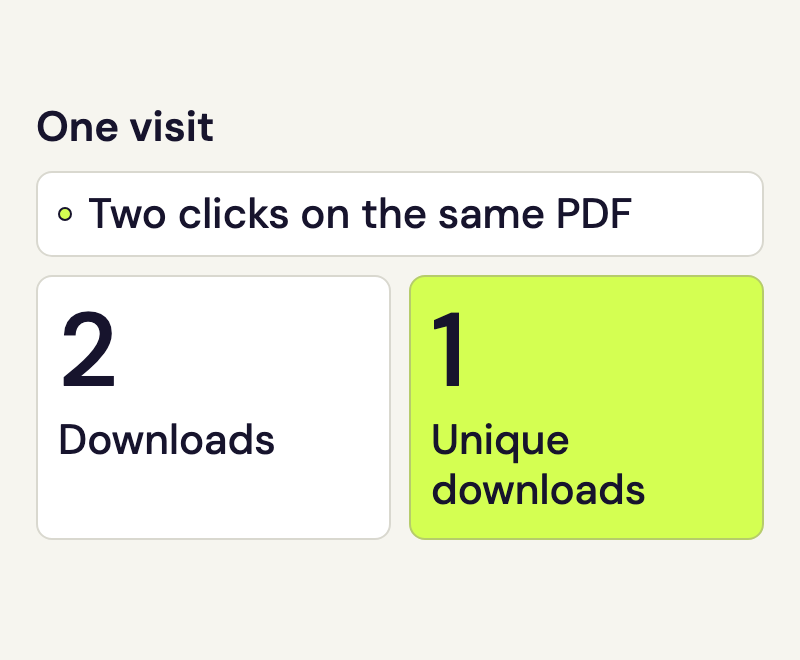
For example, someone clicks the same PDF twice during one visit. Its URL row records two downloads and one unique download. If that person clicks again on a later visit, the unique count also increases. It counts visits, rather than distinct people.
Read these values in the row for a specific URL. One visit can appear in several file or destination rows. Adding their unique counts can therefore include that visit more than once. Visits, actions and Hits explains how these metrics relate to each other.
Understand what downloads in Matomo measure
A normal link to a PDF is recorded as a download when link tracking is enabled. This also applies when the browser opens the PDF directly. Matomo confirms the click on the file link. The report does not tell you whether the transfer completed or the document was read.
Typing a PDF address directly or opening it from a search engine does not produce a click on a file link on your website. The Downloads report is therefore not a complete record of file requests to your web server.
By default, Matomo recognises common file extensions such as .pdf and .zip. Links explicitly marked as downloads can also be tracked. For a button without a normal link, or an address such as /file?id=brochure, have your website maintainer check the implementation. A PDF link hosted on another server can also appear under Downloads rather than Outlinks.
Check external destinations and your own domains
A link to another provider’s booking system normally appears under Outlinks. The counter records the click on that link. Confirming a booking requires a separate measurement within the booking process. Discuss that integration with the person responsible for your website.
Your own subdomain can also appear as an external destination. With speo Connect, the domain of the current website is treated as internal. Additional domains defined in Matomo’s website settings are not copied over automatically. If you use such domains, discuss their treatment with your website administrator.
For short links and redirects, check the address in the original link. An internal link such as /book is not automatically recorded as an outlink just because the server then redirects to the booking provider.
Check an expected click
- Open the public website. If you use speo Connect for WordPress, log out of WordPress for this test.
- Note the test time and click the PDF link once. Then check the external link too.
- Select the test date in Matomo. Once the tracking data has been processed, check the relevant URL rows. If an expected action is missing, give your website administrator the time, source page and clicked address.
speo Connect enables automatic link tracking. Some buttons or redirects may need additional technical setup. If the page visit itself is missing, start with Check Matomo tracking.
Use downloads in Matomo for content decisions
For example, check whether a new link to your price list is being used. Compare the same file over suitable date ranges and consider how many visits the website received. If you rename or move the file, look for its new address in the report too.
When the same PDF is linked from several pages, the standard report groups clicks on that destination file. Its row does not identify which placement triggered the click. Discuss a deliberate placement measurement with your website administrator before adding tracking.
You can export the Matomo report for a shared review. Keep the website, date range and complete destination URL with it.
Sources
- How does Matomo track downloads?
- JavaScript tracking guide: Download and Outlink tracking
- Matomo 5.14.2: Download report metrics
- Matomo 5.14.2: Outlink report metrics
- Matomo 5.14.2: Report metric definitions
- Matomo 5.14.2: Action metric aggregation
- Matomo 5.14.2: JavaScript link classification
- Downloads and source-page context
- Behaviour reports
- Troubleshooting download and outlink tracking