Analyse your website’s internal searches
Analyse site search in Matomo. Find common terms, investigate searches with no results and check the content opened after an internal search.
Content checked on 08.11.2026
At a glance
Site Search reports concern terms entered on your own website. Searches counts visits involving each term. To identify a search with no results, the integration must have supplied the number of results.
In this article
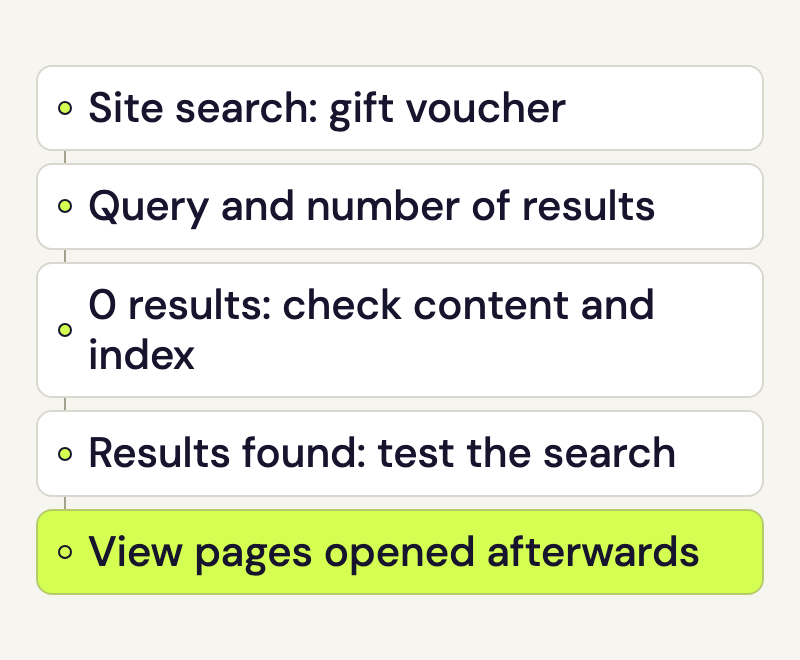
Frequent searches for “opening hours” may suggest that the information is hard to find on your website. A search for “gift voucher” with no results may point to missing content or vocabulary not covered by the search index. Use the reports to investigate those cases in the actual search function.
Set up site search tracking
Your website needs its own search function for this report. These terms come from searches within the website; searches performed on Google belong to other reports.
With speo Connect, you can enable tracking for the standard WordPress search directly. Open Settings > speo Connect > Tracking. Under Measurements, select WordPress search and choose Save tracking. When tracking is active, the plugin sends the search term and result count from tracked search results pages.
For other search functions, Matomo can recognise the term in a configured URL parameter or receive a dedicated site-search action. Agree the appropriate method with your website maintainer and Rocketsky.
A dedicated site-search action replaces the normal pageview for the results page. The integration needs to account for this so the same search is not recorded again as an additional pageview. Content pages opened afterwards are still recorded as pageviews.
Decide which search fields will be tracked before configuring them. Free-text searches may contain email addresses or other personal information. Account for this when choosing and preparing the terms that will be sent.
Read site search reports
- Open the full Matomo interface from your speo account. Choose the website and date range.
- Go to Behaviour > Site Search. The Site Search Keywords report contains recorded terms.
- Start with a frequent search or one important to your business. Perform it on your website and check whether the expected service appears among the results.
- Searches counts visits that included a search for that term. Repeating the same term within one visit does not create several visits involving it.
- Search Results pages is the average number of result pages viewed for the term, such as moving to the next page of results. It is not the number of content pages opened.
- % Search Exits is the share of the relevant visits that ended after that search. A high value is a reason to check the results; it does not prove failure.
An answer may already be visible in the results list, such as a phone number. Alternatively, a search may be repeated because the expected answer is missing. Read the figures alongside a test of the particular term.
Investigate searches with no results
Open Search Keywords with No Results. A term appears here only when the integration supplied a result count of zero. An omitted count does not automatically mean zero results. An empty report therefore does not prove every search succeeded.
If “apprenticeship” returns nothing although your website has a page about training positions, check the terms and the search index. A suitable title, clear description or synonym may help. If the requested offering is genuinely absent, first decide whether the website should provide that content.
Check the pages opened after site search
The Pages Following a Site Search report lists pages viewed after internal searches. It helps identify content reached this way. It does not connect every row to a particular keyword or a complete personal visit history.
If an important contact or service page is frequently opened after searching, consider a direct link in a suitable location. Test the search again, then observe whether the changed navigation is used over an appropriate date range.
If an expected search is missing
During a test, note the term, results URL and result count displayed. With speo Connect, use the public website while logged out of WordPress. Once the tracking data has been processed, check the relevant day in the search report.
If the term is missing but pageviews are recorded, have the search parameter or action checked. If ordinary visits are missing too, start with the Matomo tracking check. Visits, actions and hits explains how site searches relate to the other counters.