Check Matomo tracking when visits are missing
Check Matomo tracking when visits are missing. Review the website status, test a page view, inspect browser requests and check the page report.
Content checked on 08.11.2026
At a glance
Test a public page while logged out of WordPress. Loading the Matomo script alone does not prove that a visit has been recorded.
In this article
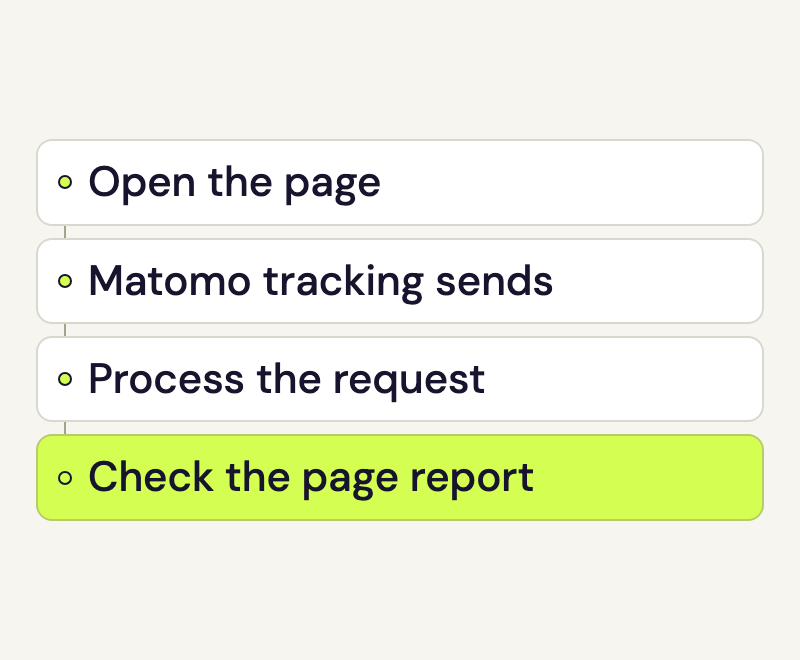
You open your website, but no new visit appears in the report. First check whether that page view should be recorded. For example, speo Connect excludes logged-in WordPress administrators. You need administrator access to your WordPress site to change the plugin settings; your normal speo access lets you view your Matomo reports.
Check the website and its status in speo
Open Websites in your speo account and check the address. Pay attention to https, www and any subdirectory. The connection must belong to the website you are testing.
The status helps you identify the next step:
- Code ready: setup has provided a tracking code. This does not yet confirm a first recorded visit.
- Connected: speo has already recorded actions for this website. It does not confirm that your current test has arrived.
- Paused: new actions are not being recorded for this website. The person who manages your websites in the customer account can check what to do next.
If domain verification or setup is still incomplete, finish that step first. Also check the Hit allowance in the overview when new data stops appearing. Whether reaching the allowance pauses tracking depends on your plan and any grace period; reinstalling the code cannot lift that pause.
Open the right report
In the reports, choose the same website and a date range that includes your test. A test made today needs today’s date in the range. Also check when the portal’s retrieved figures were last updated.
If needed, open the full Matomo interface from the customer portal. Check the website name, date and any selected segment. A segment shows only a subset of visits.
Several page views can belong to one visit. Reloading a page repeatedly during that visit does not necessarily add the same number of visits to the report.
Make a test visit
- Open a public page on your production website in a browser profile where you are logged out of WordPress. Use neither the preview nor a staging address.
- Check that browser’s privacy choices. If it sends Do Not Track, speo does not record the page view. An opt-out saved through your privacy page also remains in effect.
- If your website requires consent, give it for your test. Then open another page.
- Note the page and the time. These details help you check the Pages report and describe your test to Rocketsky.
A content blocker can prevent the script or the tracking request. If needed, compare with a separate browser profile in which you allow analytics for your own website.
Check Matomo tracking on your website
For WordPress, the person responsible opens the speo Connect settings. Check that speo Connect shows a confirmed connection and that website analytics is enabled. A successful connection alone does not switch on collection.
In the mode that requires consent, your consent-management solution must pass the visitor’s consent to Matomo. Accepting the banner is only enough if that integration is configured. If nothing is recorded after you agree, ask the person responsible to check that the banner passes your choice to Matomo.
If the plugin reports an existing Matomo integration, establish which plugin or tag manager should handle tracking. speo Connect does not start a second tracker alongside one it recognises. The WordPress guide explains the intended connection.
For a website without WordPress, the tracking code from the corresponding speo account should be present on the pages you want to measure. Check new page templates and any recent changes to the page header in particular.
Inspect Matomo tracking in the browser
The browser’s developer tools can distinguish a missing script from a request that is not sent. Open the Network panel, keep it open and reload your test page.
First look for matomo.js, then find the tracking request sent to the analytics service. speo Connect sends it through index.php with module=SpeoControl and action=collect. Filtering only for matomo.php, as general Matomo guides often suggest, would miss this request.
- The script is missing or blocked: check whether tracking is enabled, whether your test page view is excluded and whether a content blocker intervenes.
- The script loads but no tracking request follows: check consent, Do Not Track and this browser’s opt-out. A JavaScript error can also prevent tracking from starting.
- The request fails: note the HTTP status or the exact browser message, such as a blocked request. This helps identify the cause.
An accepted speo request may show HTTP 202 because it is processed afterwards. A successful HTTP status alone does not prove that a visit was recorded. After processing, check the Pages report for the matching website and test date.
Verify Matomo tracking in the page report
In Matomo, open Behaviour → Pages and select the relevant website and test date. Expand the URL levels until you reach the page you visited and check its recorded page views. Refresh the report after processing if needed. The URL row contains the aggregated page views for the selected period.
Matomo calls this report calculation archiving. Rocketsky runs it for speo and can investigate request acceptance and processing as well as report generation when data is missing.
If the expected page is missing from the report, contact us with the public page you tested and the time. Include the browser, whether you were logged out of WordPress and what the network request shows. The page address without confidential parameters and the status or error message are enough. Leave out connection codes, passwords and full request headers.