Measure clicks with Matomo events
Use Matomo events to measure specific button clicks. Choose consistent labels, test individual triggers and read the results in the Events report.
Content checked on 08.11.2026
At a glance
Your website maintainer connects the button to an event. Fixed category, action and name labels let you find the recorded click in Matomo.
In this article
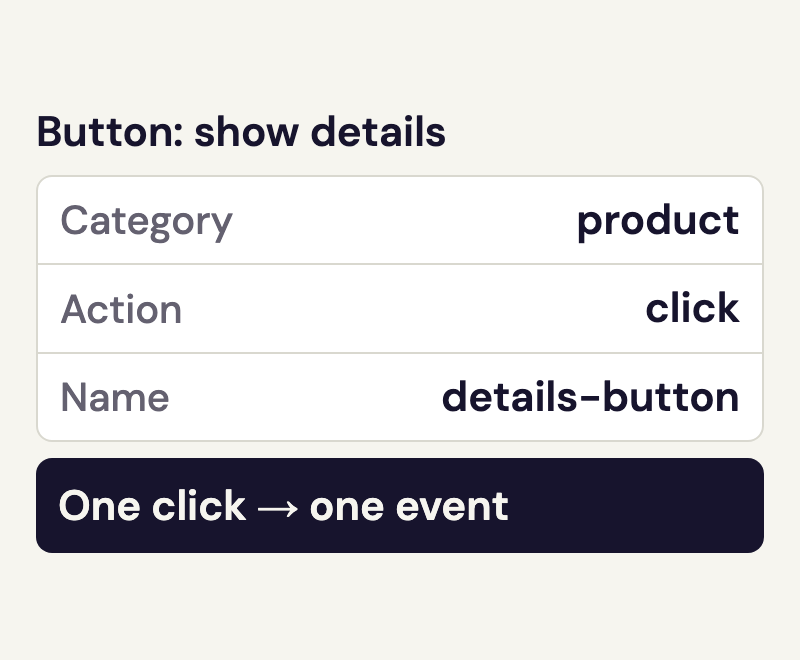
A “Show details” button reveals extra information on a product page without loading another page. Page views therefore do not tell you how often someone clicks that button. A Matomo event can record this interaction.
Decide what the event should count
In this example, each click on “Show details” should trigger an event. The measurement records use of the button. It does not confirm that the details appeared correctly or that someone read them. To measure a submitted contact enquiry, the trigger would need to follow confirmation that the form was sent successfully.
File links and links to other websites have their own download and outlink reports. First check whether the click you need is already recorded there. An additional event would be another action.
Give Matomo events consistent names
We use these labels for the example button:
- Category:
productgroups interactions in the product area. - Action:
clickdescribes the interaction. - Name:
details-buttonidentifies the “Show details” button.
Category and action are required. Name is optional; here, it identifies the particular button. This click does not need a numeric value. If you add an event value, it must be a number with a defined meaning and unit.
Keep the spelling consistent: product and Product create different categories. The example’s English technical labels can stay the same across all website languages. Use fixed labels for the element and keep personal input, such as names or email addresses, out of the event fields.
Connect Matomo events to the button
Your website maintainer adds the measurement call to the button’s existing click handler. It uses the Matomo integration already in place:
const queue = window._paq;
if (queue && typeof queue.push === 'function') {
  queue.push([
    'trackEvent', 'product', 'click', 'details-button'
  ]);
}
The condition checks whether the existing Matomo queue is available. The call belongs where the chosen click is handled. Your maintainer can also implement the same measurement through a tag manager they already manage; use one route for this measurement point.
The existing consent and opt-out configuration also applies to events. Your website or tag manager maintainer makes the change. You then use your regular speo access to read the Matomo report.
Test a single click
Open the page in a browser profile where you are not logged into WordPress as an administrator. Tracking must be permitted there; a saved opt-out or Do Not Track setting still applies.
- Load the page without using the button. No event for this measurement point should fire yet.
- Click “Show details” once. Your maintainer checks the tracking payload in the browser’s network tools:
e_c=product,e_a=clickande_n=details-button. This click should send exactly one event action with those values. - Open Behaviour > Events and choose the same website and test date. Once the tracking data has been processed, check for
product,clickanddetails-button, refreshing the report if needed. The event count includes all matching triggers in the selected period. - Reload the page without clicking, then deliberately click again. Each actual click should produce its own event; reloading alone should produce none.
If one click produces two identical events, your maintainer first checks whether the measurement exists in both the website code and the tag manager, or whether the same click handler has been registered more than once. If the event does not appear in Matomo, the tracking check guide helps you inspect collection. A request sent by the browser alone does not confirm a saved report entry.
Read Matomo events in the report
Open the full Matomo analysis from your speo account, then Behaviour > Events. Choose the correct website and date range. The category, action and name breakdowns let you find product, click and details-button.
The event total shows how many activations were recorded. Several clicks can belong to the same visit; an event count is not a count of people. In speo, accepted events also use the hit allowance. The guide to visits, actions and hits explains how these figures differ.
If you move the button, keep its event labels and note the date of the change. Compare suitable periods using the same measurement definition.
Sources
- The anatomy of an event, example events and best practises
- JavaScript Tracking Client: API Reference
- Implement Event tracking with Matomo
- When not to use Events, and what to use instead
- Get insights and improve your site with Events report
- What is the view permission in Matomo?
- Tracking HTTP API
- Tracking & Cookie Consent