Add the speo tracking opt-out to WordPress
Add the WordPress opt-out with speo Connect. Place the shortcode on your privacy page and check that the browser choice survives a reload.
Content checked on 08.11.2026
At a glance
The shortcode adds the control. Test it on the public website in the same browser and check the state after reloading.
In this article
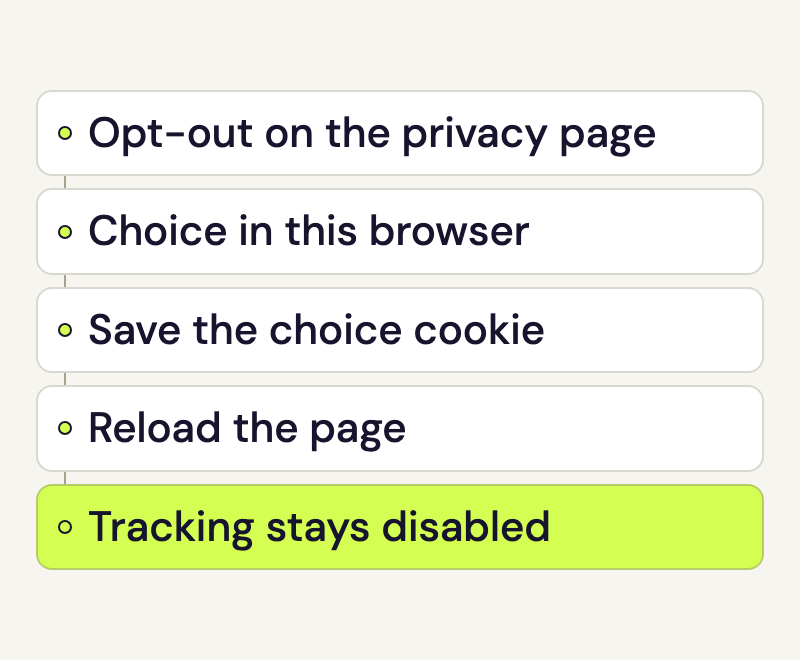
With speo Connect, you can add a control to your WordPress website that lets visitors turn website analytics off. The choice applies to the browser they are using on that website.
Prepare the WordPress opt-out
speo Connect must be active, connected to the relevant website and enabled for analytics. Its setting is under Settings > speo Connect in WordPress. The person adding the control also needs permission to edit the page where it will appear.
The website-analytics section of your privacy notice is a suitable location. Keep the explanation and control together, reachable through the website’s privacy link.
Insert the WordPress opt-out shortcode
Open the WordPress page. In the block editor, add a Shortcode block and enter the code below. In the Classic Editor, put it on its own line in the content:
[speo_opt_out]Save the page and open its public view. It should show a status message and the available control. If the square brackets remain visible as text, check that the plugin is active and that the content area processes shortcodes. This speo shortcode does not need another Matomo code block or an iframe.
The shortcode belongs to speo Connect. Instructions for the separate “Matomo for WordPress” plugin use a different shortcode and do not apply to this integration.
Test the WordPress opt-out
Use the public website in a normal browser profile where you are not logged into WordPress as an administrator. A preview or development environment does not prove the behaviour of an ordinary public visit.
- Open the page containing the control and read its status.
- Turn website analytics off using the control, then check the resulting message.
- Reload the page to check that the choice persists. Your website maintainer checks the browser’s network tools to confirm that the speo integration sends no tracking request for this new page load.
- Turn analytics back on if you want to test that state. Reload again and check the status.
Matomo’s opt-out function stores the choice in a technically necessary cookie. Another browser or device does not automatically share it. Clearing cookies or blocking their storage can remove the choice on the next page load. Reloading is therefore part of the test.
When tracking requires consent, your consent solution remains responsible for permission on subsequent page views. Test withdrawal and renewed permission together with that solution; the button alone does not prove that consent has been correctly remembered.
If the control is missing
When Do Not Track is enabled, the form states that speo is not recording that page view. It does not offer a manual toggle in that state: the browser setting takes precedence.
Without JavaScript, or when the analytics service cannot be reached, an explanatory message remains visible. A connection that has not been activated or another existing Matomo integration can also prevent the control from loading. Give your website maintainer the displayed message and page URL so they can check the cause. Other analytics integrations need to be checked separately.
Check Matomo tracking explains how to inspect general collection. For the opt-out test, check that the control correctly reports the browser’s actual state after reloading.
Explain the choice in your privacy notice
Explain which website analytics you use and that the choice is saved for the current browser. If your implementation requires prior consent, your consent solution continues to control that permission.