Create campaign links and read the results in Matomo
Create campaign links for newsletters, social posts and QR codes. Check their destinations and compare the recorded visits in Matomo.
Content checked on 08.11.2026
At a glance
Use mtm_campaign to name the promotion and mtm_keyword to distinguish its links. Compare the recorded visits in Acquisition > Campaigns.
In this article
Plan campaign links for one promotion
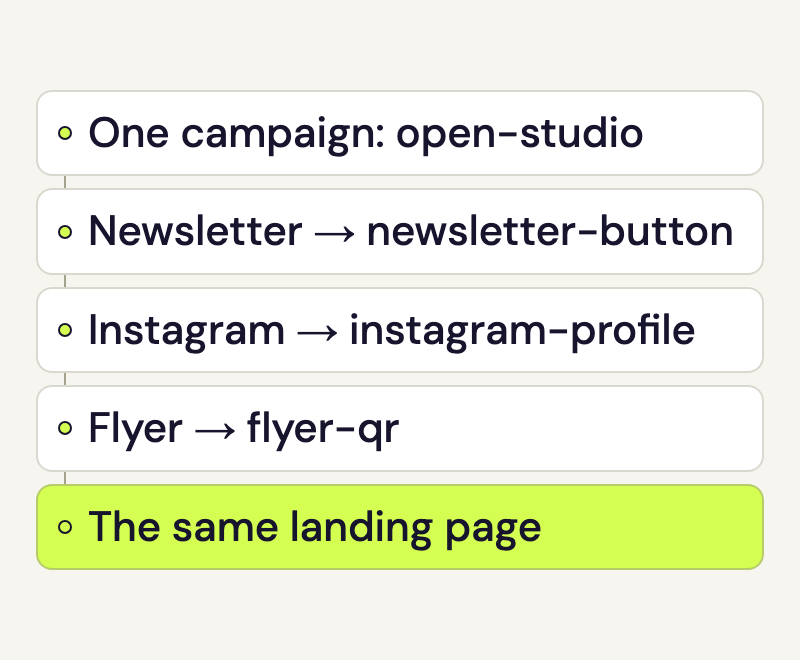
A pottery studio advertises an open day in its newsletter, on Instagram and on a flyer. Every link leads to the same event page. A shared campaign name with different keywords lets the studio see which link brought each visit.
| Link placement | Campaign name | Campaign keyword |
|---|---|---|
| Newsletter button | open-studio |
newsletter-button |
| Instagram profile | open-studio |
instagram-profile |
| Flyer QR code | open-studio |
flyer-qr |
The Keyword field subdivides the campaign here. It can describe a placement rather than a search term. Choose your labels before sending the newsletter and use the same spelling in every link. Short lowercase names separated by hyphens are easy to recognise in the reports.
Create campaign links with the URL builder
- Open the Matomo URL Builder.
- Enter the full destination address in Website URL. To measure the visits that follow, speo tracking needs to be active on the landing page.
- Fill in Campaign name and Campaign keyword for that placement. For this example, use both values from the same table row.
- Generate the URL and paste it into the link destination in your newsletter or post. For the flyer, use the generated URL as the QR code’s destination.
The example newsletter link looks like this. Replace the example domain and page path with your own destination.
https://example.com/open-studio/?mtm_campaign=open-studio&mtm_keyword=newsletter-buttonThe builder adds the parameters correctly even when the destination already has a query parameter. Campaign values are visible in the URL, so use descriptive labels without people’s names or email addresses.
Check campaign links before sending or printing
Open the final link from a newsletter preview or the published post. For WordPress, test on the public website while logged out. Check the destination page and the campaign values in the address bar. If you use a short link or a redirect, check the address after the redirect.
Test the QR code at its intended print size. It should open the full campaign link. A link containing flyer-qr should reach the same page as the other links while keeping its own Keyword value.
Read the campaign in Matomo
- Open the full analytics view from your speo account and select the website.
- Choose the period when the promotion ran, then open Acquisition > Campaigns.
- Find the campaign name,
open-studioin this example. Open its row to see the associated keywords. - Compare the visits for each link. The table’s visitor engagement view adds metrics including actions per visit and bounce rate.
These figures describe recorded visits to your website. Email open rates are available in your newsletter tool. If goals are already configured for the website, you can also review the campaign’s goal conversions.
Choose a suitable comparison period
A flyer may remain in circulation longer than a social media post. Note when and where you used each link and choose a reporting period that fits the promotion. A test visit can confirm attribution; the visits received afterwards help you assess the placement’s effect.